Thank you for joining us as GAMFT continues to modernize the member experience. Our virtual learning platform makes it simple to access your continuing education history and download your CE certificates whenever you need them.
We recommend downloading your certificates to your computer so they're readily available when it's time to upload them to CE Broker for license renewal. If you have questions about the CE Broker or license renewal process, check out our video walkthrough linked here.
How to Download CE Certificates
1. Go to the GAMFT Thinkific landing page
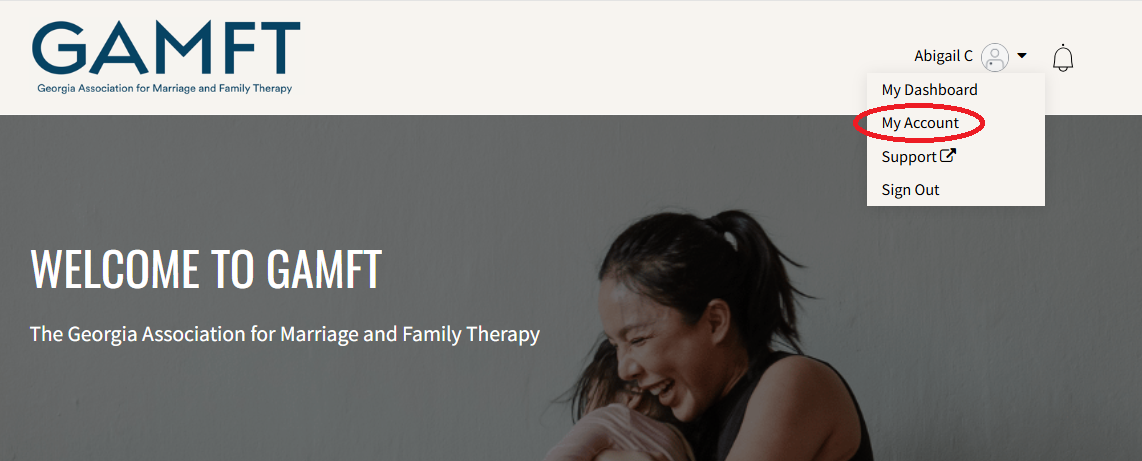
2. In the top left, click on your name and select "My Account"
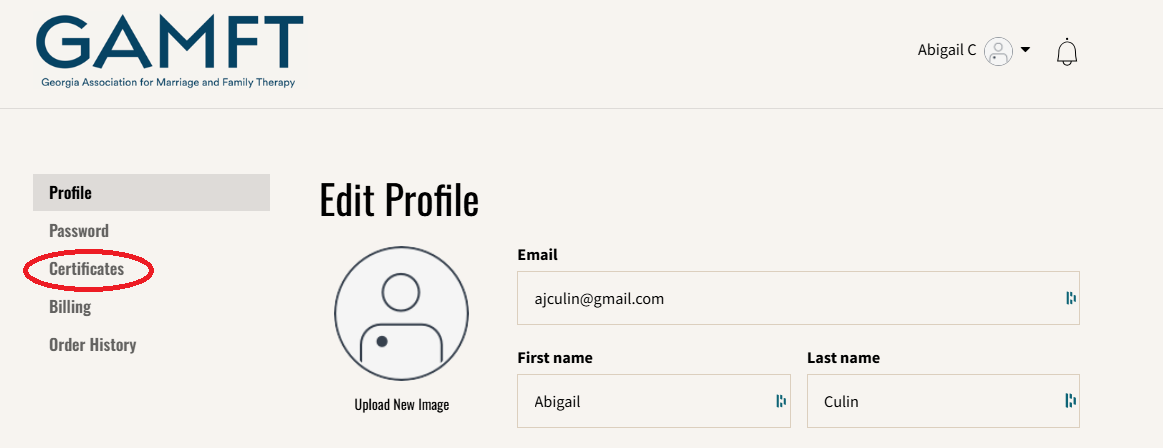
3. In the left sidebar, click "Certificates"
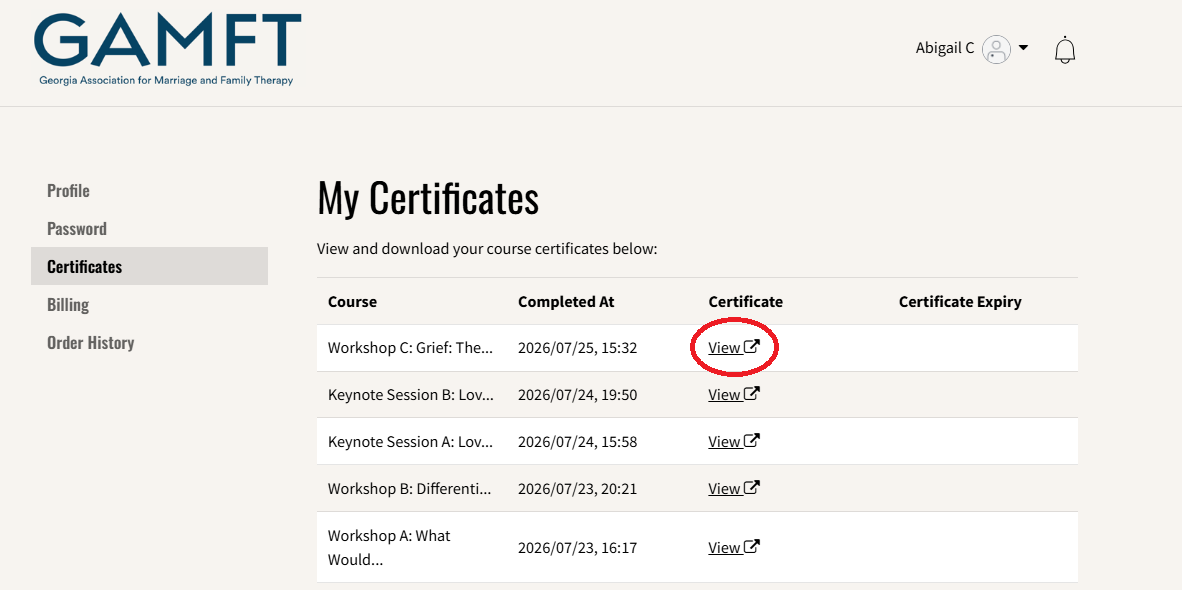
4. Here you will see each CE course you have completed.
5. Find a CE certificate you'd like to download and click "View"
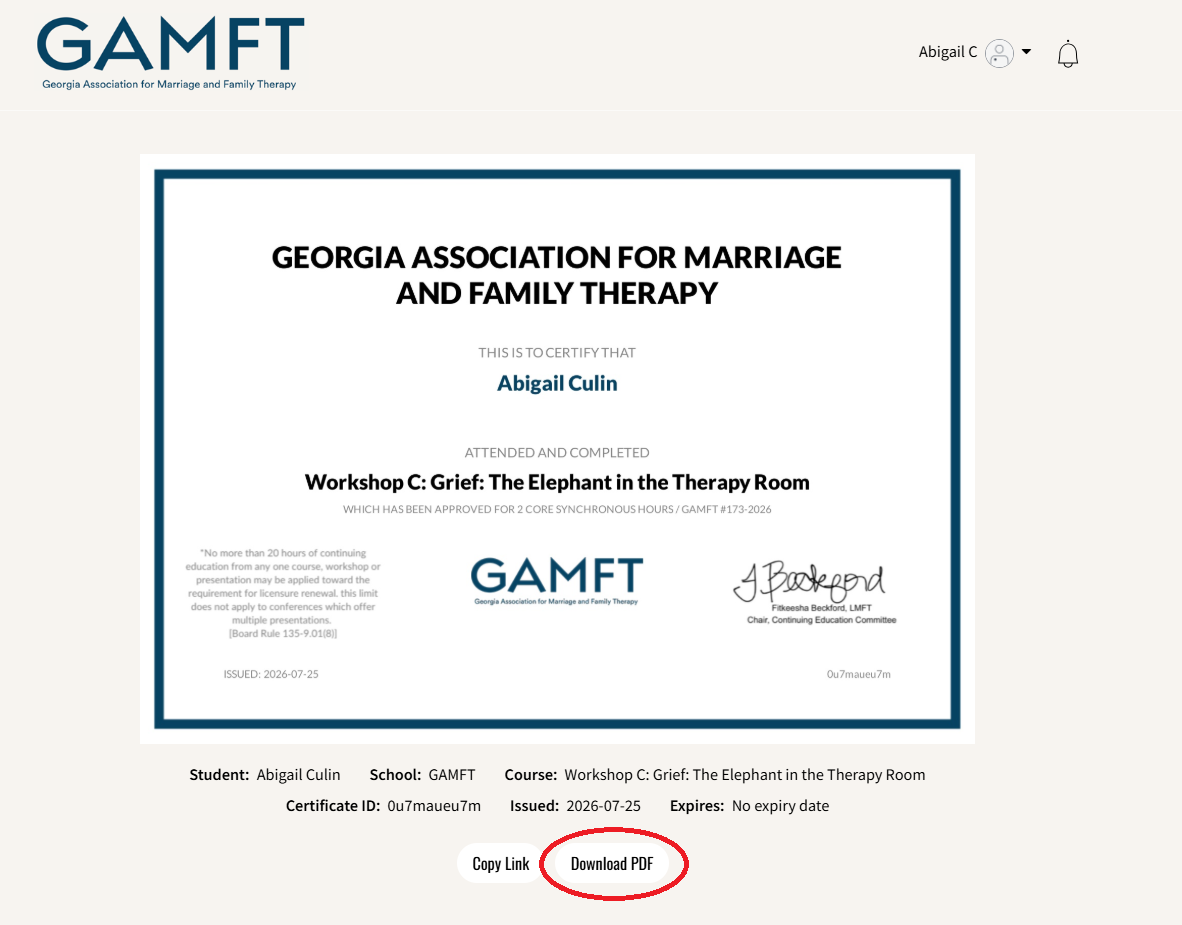
6. When the certificate opens, click "Download PDF." Note: you may need to scroll down to see that button.